Terraria 1.4.5 (the “Bigger and Boulder” update) finally landed in January 2026, bringing massive additions like the Dead Cells and Palworld crossovers. But if you read the patch notes closely, you might have noticed one highly anticipated feature was missing: official crossplay.
Re-Logic has confirmed that native, official crossplay is coming in a minor hotfix after the 1.4.5 dust settles.
But what if your friend group is split right now? What if you are on PC, your sibling is on an iPad, and your friend is on Xbox, and you all want to start a new 1.4.5 world today?
The good news is you do not have to wait for Re-Logic’s official patch. By using a modified server tool called TShock and a specific community plugin, you can force cross-platform compatibility right now. Here is exactly how to set it up on your dedicated game server.
The Magic Ingredient: TShock & The Crossplay Plugin
By default, vanilla Terraria servers do not know how to translate the network packets between PC, Mobile, and Console versions.
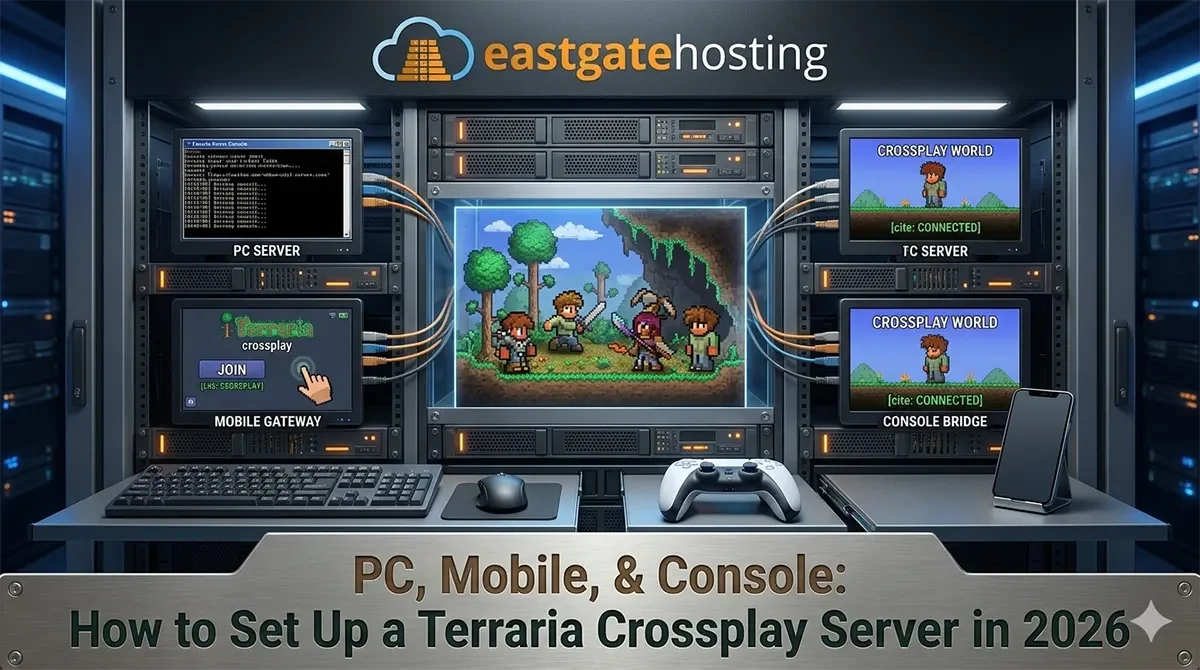
To fix this, we need to swap out the “vanilla” server software for TShock, which is essentially a server-side mod loader for Terraria. Once TShock is running, we can drop in the Crossplay.dll plugin. This acts as a live translator, adjusting packets from mobile and console clients so they make perfect sense to the PC-based server.
Step-by-Step Crossplay Setup
If you are hosting your world on an East Gate Hosting dedicated game server, this process only takes a few minutes through your control panel.
Step 1: Install TShock
- Log in to your game server control panel and Stop your Terraria server.
- In your server settings or version manager, swap your server type from “Vanilla” to TShock. (Make sure you select the TShock version that matches the current 1.4.5 game version).
- Start the server once to let TShock generate its necessary folders, then stop it again.
Step 2: Download the Plugin
- Go to https://tshock.co/
- Go to the “Releases” section on the right side of the page.
- Download the latest Crossplay.dll file to your computer.
Step 3: Upload and Activate
- Go back to your server control panel and open the File Manager.
- Look for a newly created folder named
ServerPlugins. Open it. - Upload the
Crossplay.dllfile directly into this folder. - Restart your server.
That is it! Your server is now broadcasting a crossplay-compatible signal.
How Different Platforms Connect
- PC (Steam/GOG): Connect normally via the “Multiplayer > Join via IP” menu using your server’s IP and port.
- Mobile (iOS/Android): Connect exactly like PC users. Go to Multiplayer, add the server IP and port, and join.
- Consoles (Xbox / PlayStation / Switch): Consoles are locked down by their manufacturers and do not have a standard “Join via IP” button. To connect to your server, console players will need to use a DNS Redirect workaround. This involves changing their console’s network settings to route a dummy server IP (like the local network multiplayer search) to your actual server IP. Note: This requires a bit of technical patience from your console friends, but there are plenty of quick mobile apps (like LanPlay) that help bridge this gap until official crossplay drops.
Don’t Let Hardware Divide Your Party
Waiting for official updates can kill a community’s momentum. Setting up a TShock server ensures your friends can build, dig, and fight bosses together regardless of what device they own.
If you are looking for a reliable place to host your unified world, East Gate Hosting offers high-performance dedicated game servers for Terraria. Our servers fully support TShock and custom plugins right out of the box, ensuring your 1.4.5 crossplay world runs lag-free, 24/7.